
Once the Notes are on the wall, you can turn them into one array with the app. You'll pair each Note, let them update, group them on the web, and then ask our team to activate any applicable software.
If our team is installing your array, we'll handle this for you.
Before you begin
- Every Note is hung and plugged in, and the breaker is back on. See How do I mount and hang a Note Array?
- Your network is ready, wired or Wi-Fi. See How should I connect a Note Array to our network?
- You know which account will own the array. Every Note should be paired to that account. Get the app at vestaboard.com/app and create an account if you don't have one.
Step 1: Pair each Note
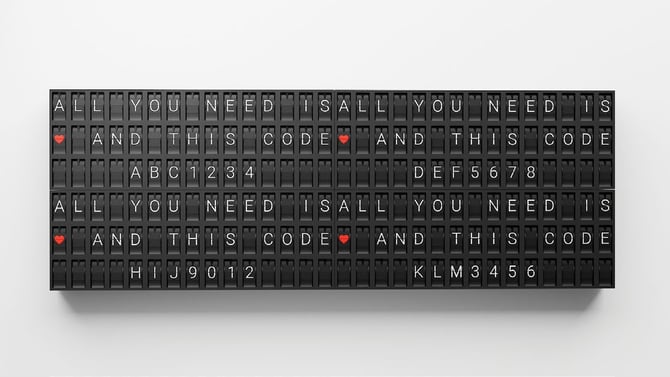
When a Note powers on for the first time, it shows a unique 7-character code.
- In the Vestaboard app, signed in to the account that will own the array, select your Note display type and follow in the app directions to enter the corresponding pairing codes.
- Choose Ethernet or Wi-Fi for its connection.
- Give the array a name.
- Set the time zone so scheduled messages arrive on time.
Step 2: Let them update
Each Note downloads any firmware update shortly after pairing. Leave every Note powered and connected while it updates, and give them time to finish. Check that every Note is back online before you move on.
Step 3: Group the Notes into the array
Sign in at web.vestaboard.com and group the paired Notes into your array if you paired them each individually. Arrange them in the layout so each one matches its position on the wall.
Step 4: Send a few test messages
Watch each message land across the whole array. If part of a message shows up in the wrong place, check that Note's position in your layout.
Step 5: Contact our team about enterprise software
Enterprise software is switched on by our team, not in the app. Email services@vestaboard.com with your array's name and the email address of the account that owns it. Once it's active, confirm your channels and automations are running before you go live.