
You can usually access a Note's power and Ethernet connections without removing it from the wall. Gently tilt the bottom edge outward to reach the ports behind it.
If you need more room, you may need to remove the Note completely. You don't need to remove the fascia for either option. For fascia removal instructions, see How do I remove the fascia on a Note in an array?
Option 1: Access cables without removing the Note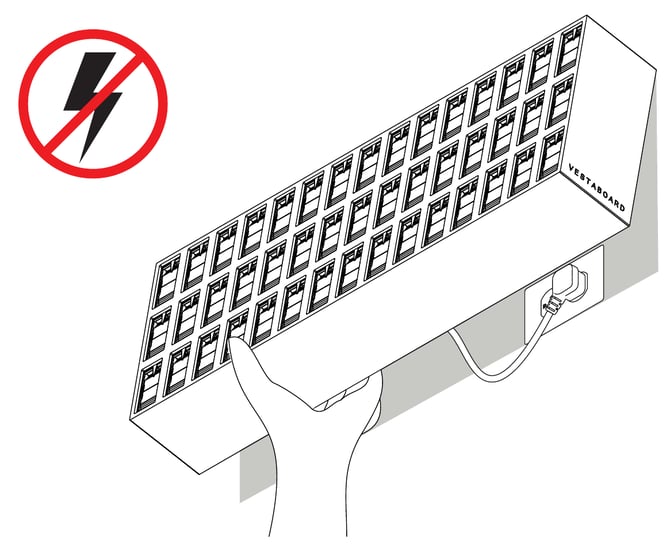
- Disconnect power. Turn off power to the Note before working on its connections.
- Tilt the bottom edge outward. Carefully grip the Note by its bottom edge and ease it away from the wall. The top remains hooked onto the wall plate.
- Swap the cable. The power and Ethernet connections are recessed near the bottom-right corner on the back of the Note. Disconnect the existing cable and connect its replacement securely.
- Guide the Note back. Gently return the bottom edge toward the wall, making sure no cables are pinched and the Note sits flush with its neighbors.
- Restore power. Confirm the Note starts up and reconnects to your network.
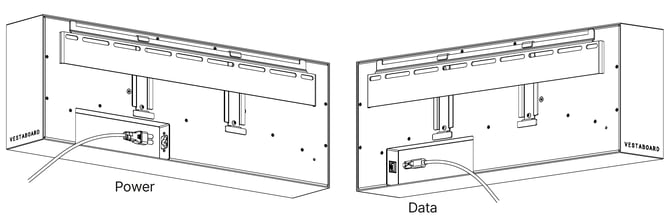
Option 2: Remove a Note completely
Each Note hangs from a wall plate and must be lifted upward to disengage. In an array, the Note directly above may prevent that movement, so removal generally starts with the top row and works downward.
Before you begin
- Have a second person available to help support the Note.
- Make sure there's enough clearance to lift the Note off its wall plate.
- If the Note is below another row, you may need to remove the Notes above it first.
Remove the Note
- Tilt the bottom edge out and unplug the power cord, and the Ethernet cable if there is one.
- Lift the Note straight up until its rails clear the wall plate.
- Bring it away from the wall and set it face up on a soft surface.
Reinstall the Note
Rehang the Notes starting with the lowest row you removed, working your way up. Follow Steps 3–6 in How do I mount and hang a Note Array?
Confirm each Note is fully seated, its cables aren't pinched, and it sits flush with the surrounding displays.